This section describes the can do's (and can nots) of your Employee Profile on yourHD.
Topics include:
- Accessing your employee profile
- Add or change your employee photo
- Protocols for your employee photo on yourHD.
- How to lodge a support ticket if there is incorrect information on your profile.
1) Accessing your employee profile
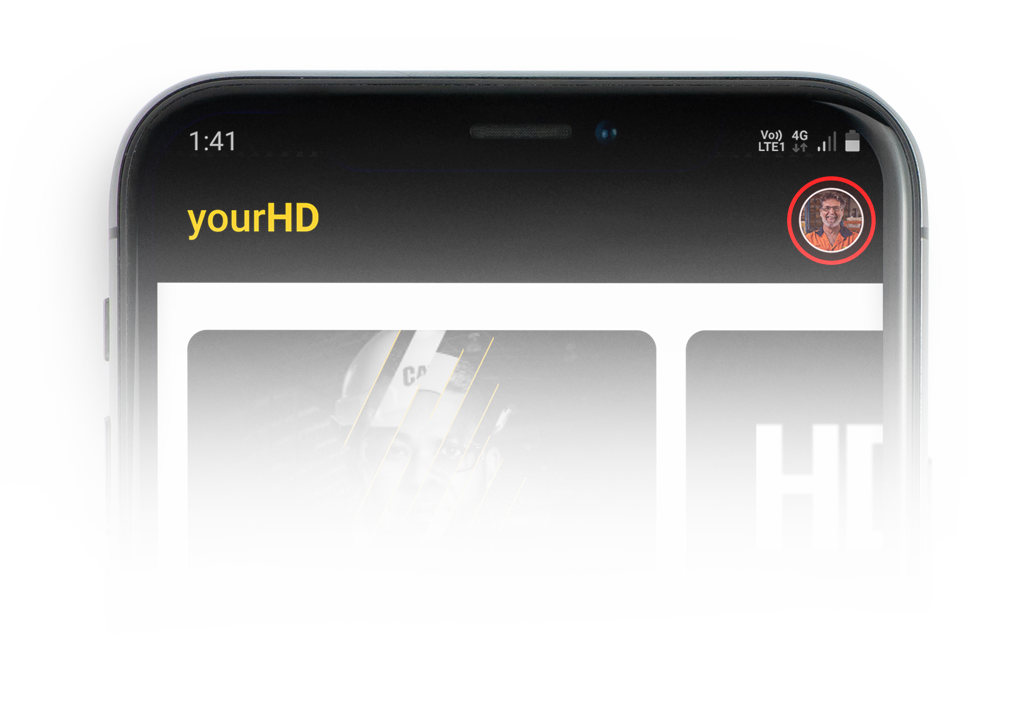
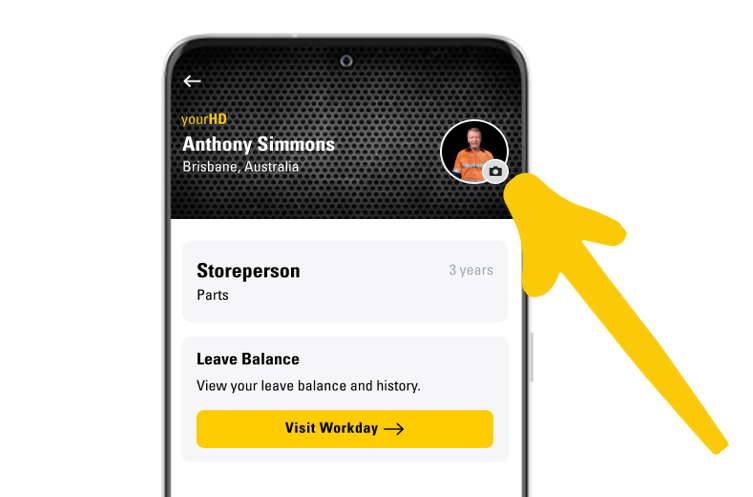
To access your profile, click on your profile dot at the top right hand side of the screen.
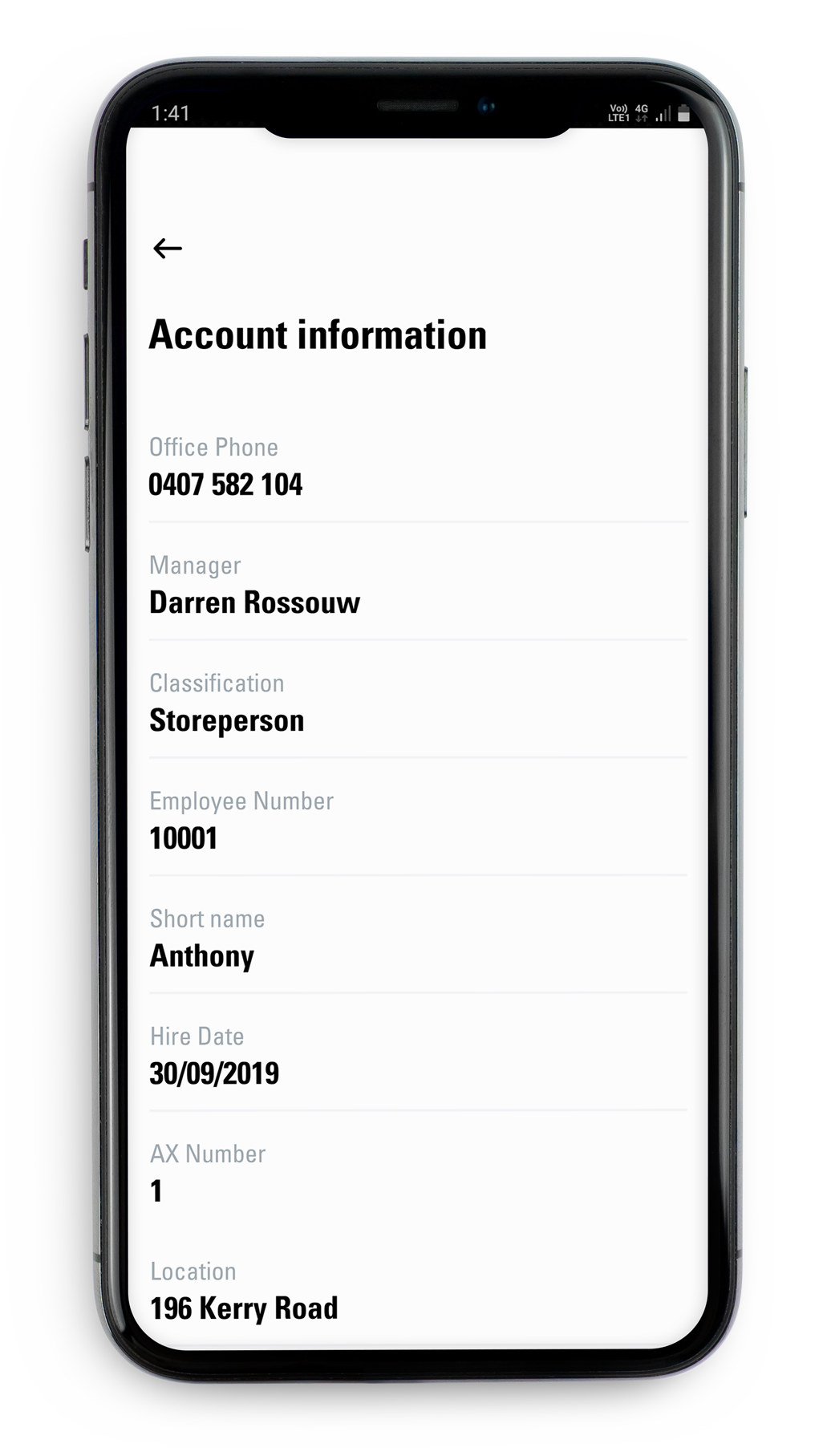
Your employee profile will appear. Click on Account information to view your employee information, including (Name, Location, Title, Department, Leave Balances, Email and Extension).

2) Add or change your employee photo
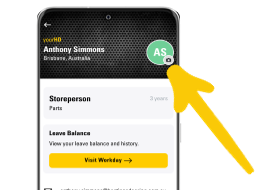
To add or change your employee profile photo, click the profile dot (top right of the screen) and click on the 'camera icon' to upload a photo.
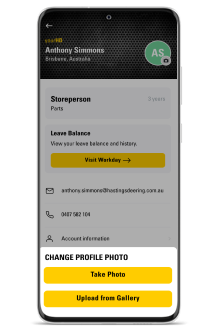
Upload an existing photo from your gallery or take a photo!
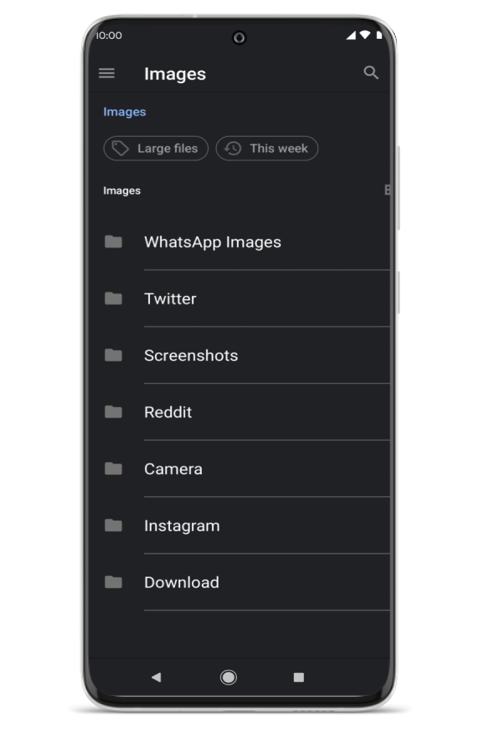
Use the Photo Crop feature to edit your photo, and click CROP IMAGE when happy!
Tip, use your fingers to adjust the frame on your photo.

Your photo has been updated!
3) Protocols for your employee photo on yourHD
Your employee photo should be:
- A photo of you that clearly shows your face - a headshot with your shoulders, facing the camera is as easy as it should be!
- Uniform background is better as it provides a contrast to your face and easier for people to see you.
- yourHD will help you size your photo just right when you are uploading it.
- It is recommended that your photo is a jpeg or png. If taking a photo with your mobile phone this is quick and easy to upload.
- Smile! This is not your passport or license photo, show us who you are!

If you need more information about employee photos, refer to the Compulsory Identification Procedure on DMS Online: HDAL-FAC-15-PR02 Compulsory Identification Procedure.pdf (sharepoint.com)
Note: This procedure focuses on photos used for ID Cards and security purposes, however the general information does apply.
4) Lodging a ticket if your employee information is incorrect
If any of your details are incorrect on yourHD, email the Digital Support Team: support@incendi.io
Comments
Please sign in to leave a comment.