1) Download yourHD app
This download and sign in process should only need to be done once.
Download yourHD from App (iPhone) or Play Store (Android)
 |
 |
|
|
 |

2) Sign in
- Click on “Log In” on the landing page once yourHD has loaded
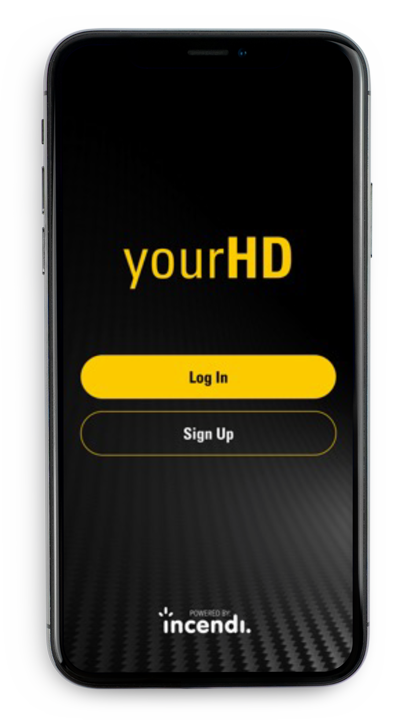
Note: Sign in using your Hastings Deering email address and password, this is also known as your Office 365 account.
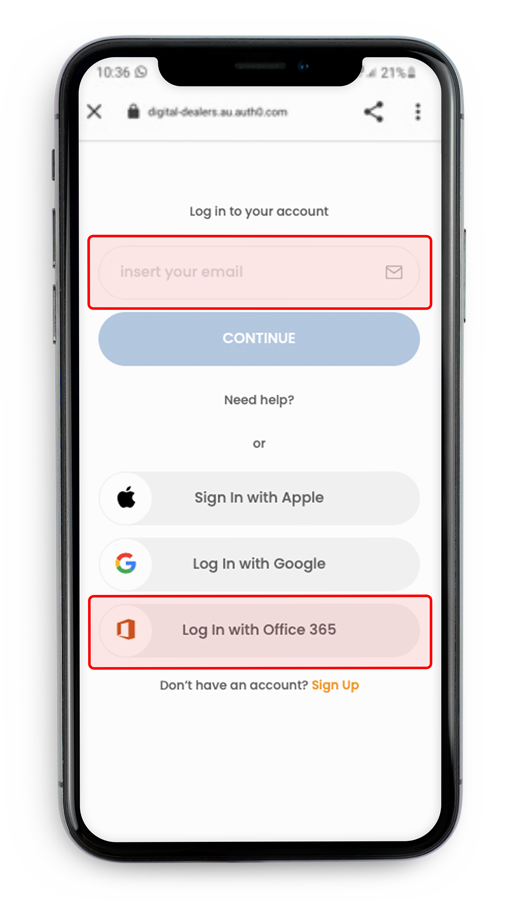
You can either type your email into the “Log in to your account” and click continue.
OR
Click on “Log in with Office 365”.
Both will take you to the Office 365 sign in
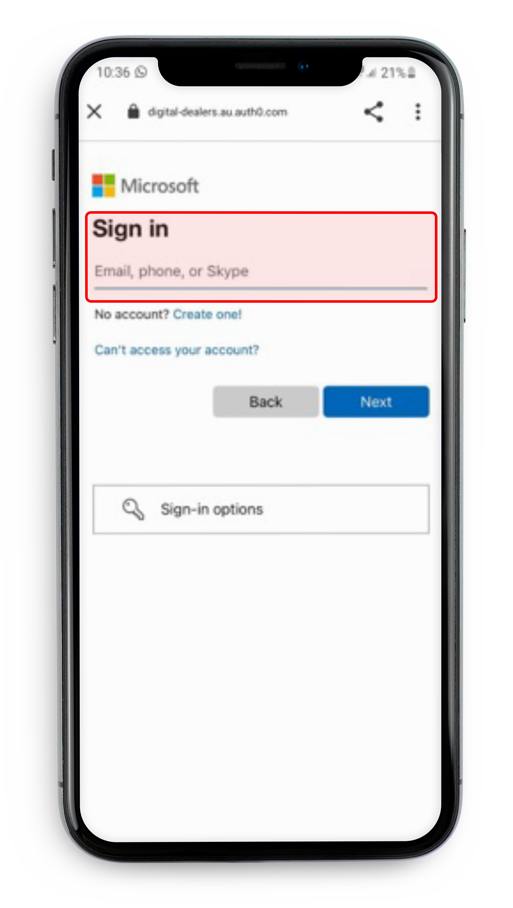
On the Register page, using your Hastings Deering email address type this in under “Sign In” and click Next.
3) Getting Started
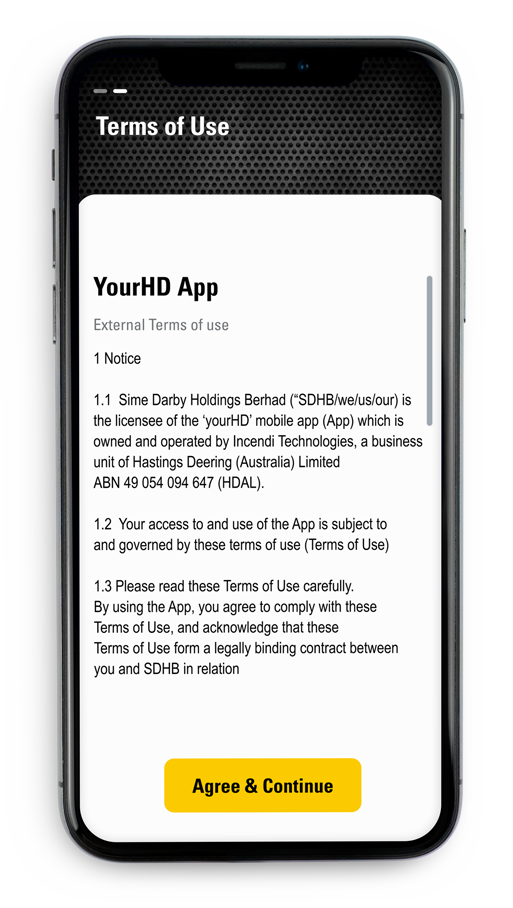
- Click on “Get Started” You will be asked to read the Terms of Use and accept the agreement.
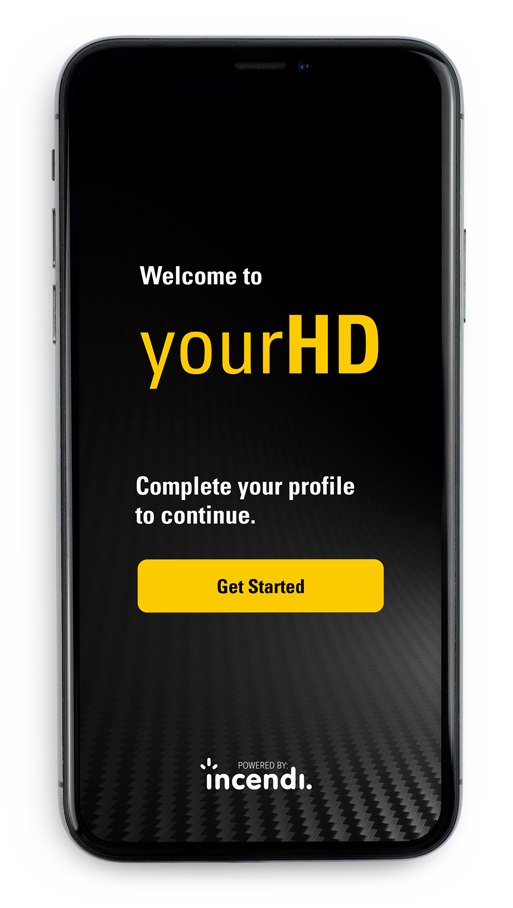
Select the "Get Started" button to start the onboarding process.
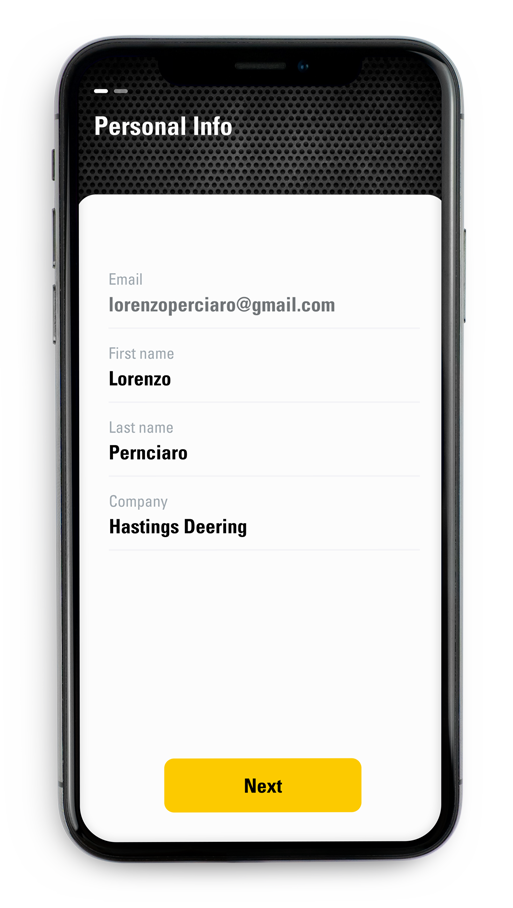
- Enter all the relevant information in the first page and select "Next" to continue.
- The next screen is the Terms of Use page. Select "Agree & Continue" to continue.
4) Employee View.
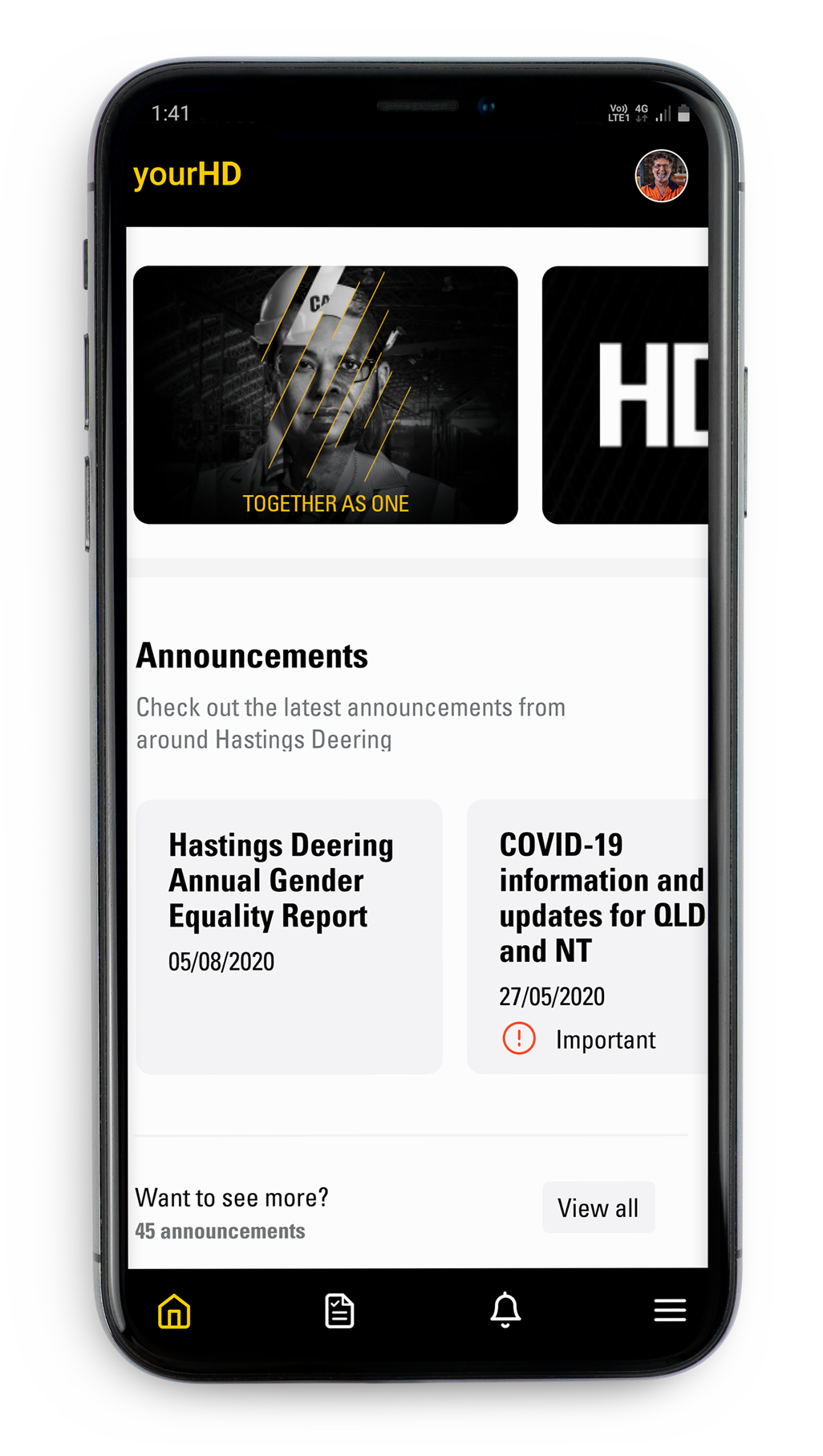
As soon as the following steps have been completed, all users will be directed to the yourHD homepage (above)
Comments
Please sign in to leave a comment.