If you are experiencing issues accessing a Particular site through your Internet Browsers or get advised to use an Incognito Window on Google Chrome or New InPrivate Window in Microsoft Edge.
This will avoid using any saved Credentials/Logins you may have in your browser History.
Please only use 1 Incognito or InPrivate Window at a time, you can still have normal Internet Browsers open whilst using this Mode.
GOOGLE CHROME
1. Right Click on Google Chrome icon & select New Incognito Window
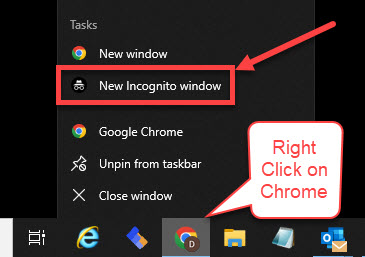
2. Enter website URL in address Bar, then Follow normal prompts for entering Username & Password.
(Depending on the site you maybe prompted to enter credentials in another pop up box)
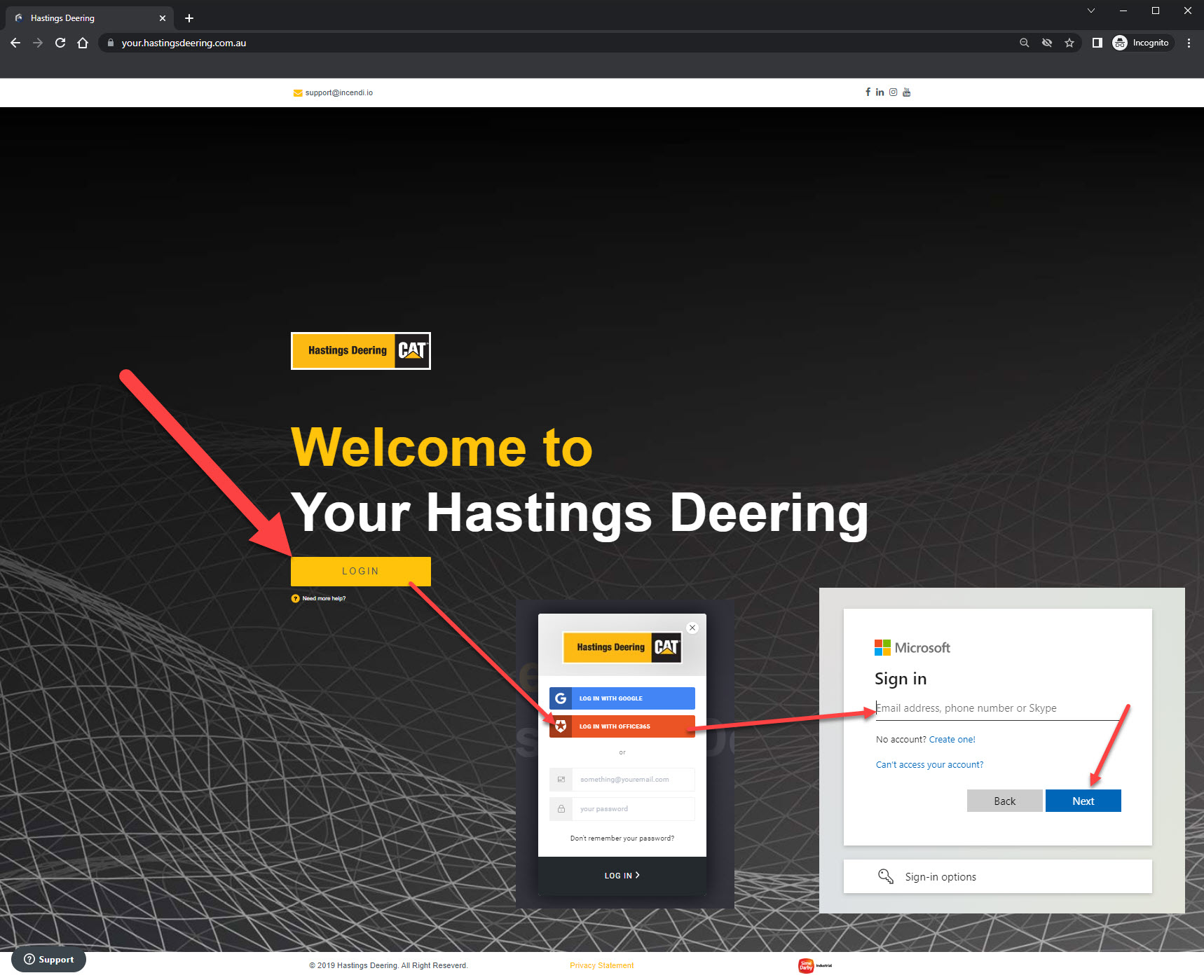
3. Once website logs in, whilst using Incognito mode, the page maybe missing some functionality or the Screen just spins/loads.
You will need to Click on the 'Eye' Icon with Strikethrough in the Address bar to the Right Hand-side, Click on Site not working?, then Click Allow Cookies, the page will then refresh and the Eye icon will no longer have a strikethough.


If the site & your access is working in Incognito mode, it is likely that your Normal Browser has the incorrect Saved Credentials or Saved Favourites in the Cache of Browser. Please see article on Clearing Cache to fix this.
MICROSOFT EDGE
1. Right Click on Edge icon and Select New Incognito Window
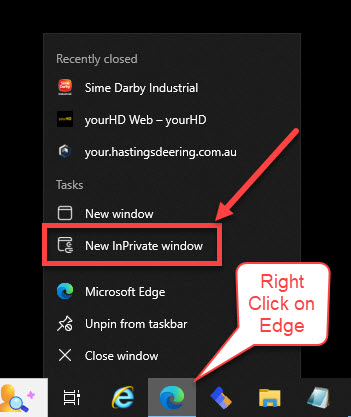
2. Enter website URL in address Bar, then Follow normal prompts for entering Username & Password.
(Depending on the site you maybe prompted to enter credentials in another pop up box)
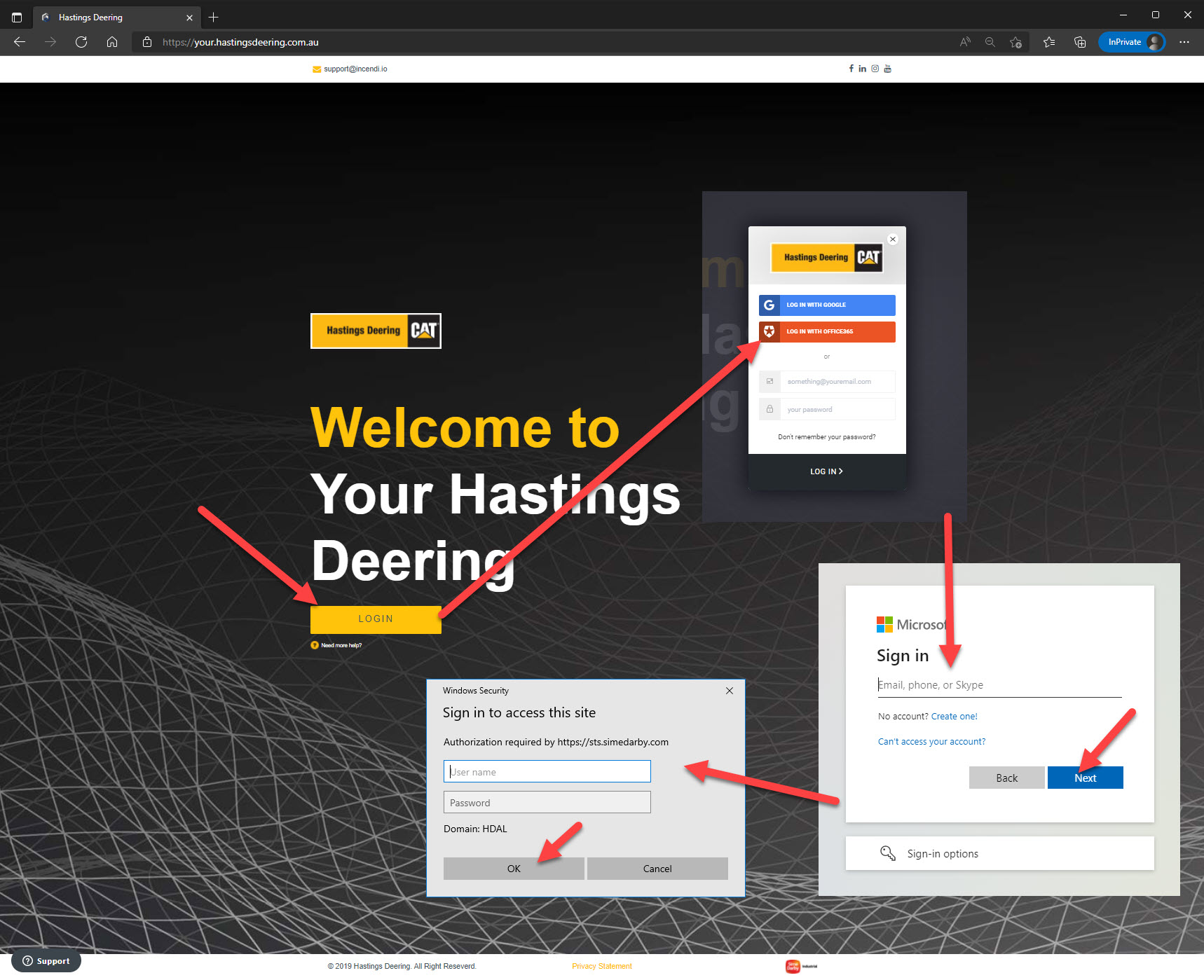
If the site & your access is working in InPrivate window, it is likely that your Normal Browser has the incorrect Saved Credentials or Saved Favourites in the Cache of Browser. Please see article on Clearing Cache to fix this.
Comments
Article is closed for comments.